Manage / User Security Console
WordPress user security at a glance
Every account is a way in. Stack Guard's WordPress user security console shows who has two-factor, who has not signed in for months, and who is signed in right now, and lets you act on it.
Why it matters
Why user security console matters
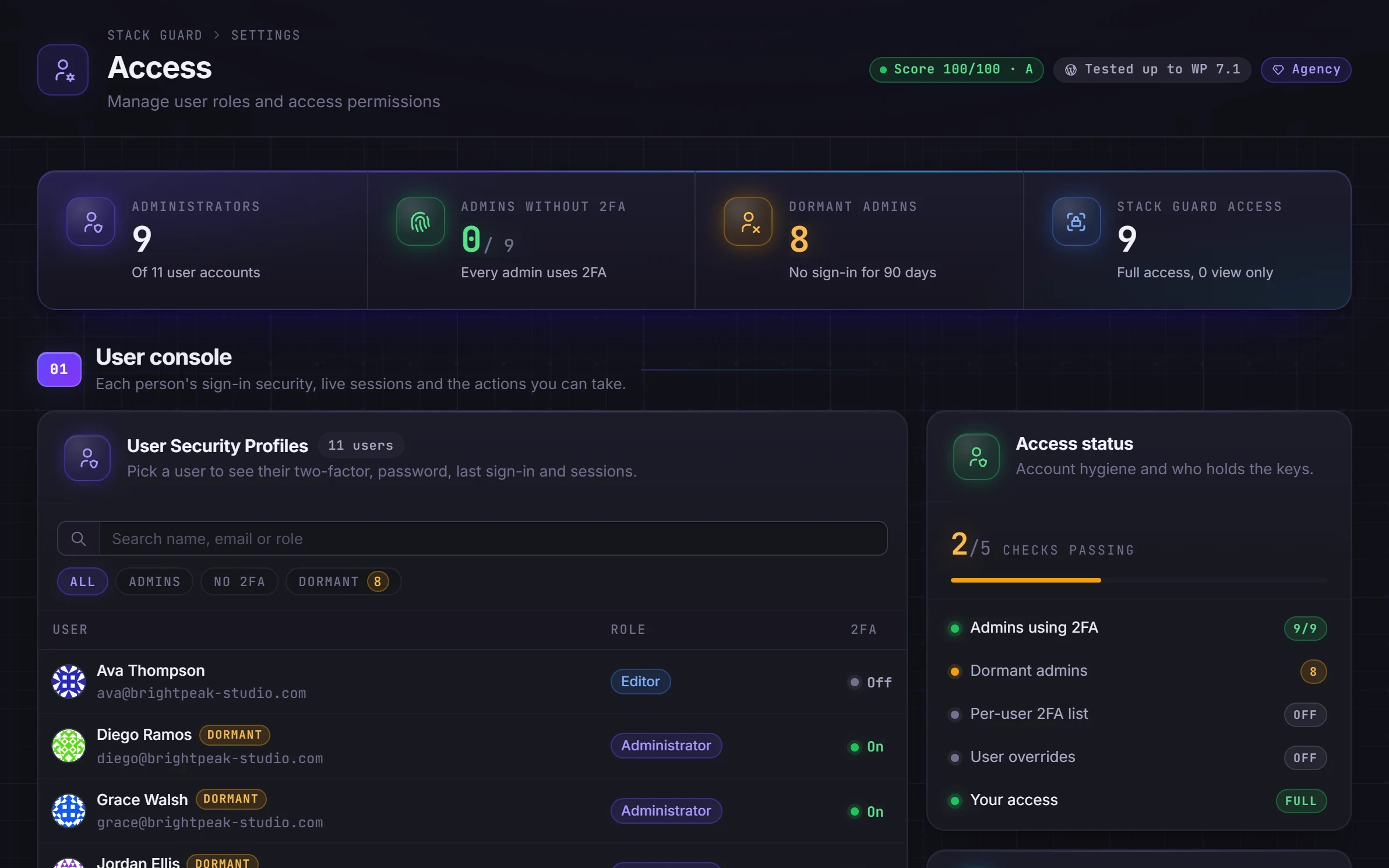
See each user's role, password age, two-factor status and live sessions. Sign someone out everywhere, require two-factor for them, and spot administrators who have not signed in for months.
Every account, one view
Role, password age, two-factor status and last sign-in for every user, with filters for admins, users without 2FA and dormant accounts.
Live sessions you control
See each user's active sessions, end one or sign someone out everywhere.
Dormant admins flagged
Administrators who have not signed in for 90 days are flagged, so forgotten accounts get removed before someone else finds them.
By plan
What each plan includes for user security console
Free
$0- Choose which roles and users can open Stack Guard
Pro adds
From $95/yr- Profiles for every user with sessions you can end one at a time or all at once
- Per-user require two-factor
- Dormant administrator flags after 90 days without a sign-in
Docs
Set it up in minutes
The same plain-language help that ships inside the plugin.
Who can open Stack Guard
Decides which roles and which people can open Stack Guard, and whether they can change settings or only look.
ReadUser security console
Shows each user's security at a glance: two-factor, password strength and age, last sign-in and every device they are signed in on, with buttons to end sessions.
ReadWhy WordPress user security is more than strong passwords
Every account is a way in, and sites collect accounts over time: past developers, agencies, staff who left, a client who was made an administrator years ago. Nobody is watching those accounts, and their passwords are often weak or reused.
WordPress gives you a list of users, but not whether they use two-factor, how old their password is or where they are signed in. Stack Guard's console puts that in one place so you can find the risky accounts in minutes.
What the Stack Guard user console shows
On the Access tab, the User console lists your users, up to 50, with filters for Admins, No 2FA and Dormant. Pick a user to see their role, two-factor status, password strength, password age, last sign-in and Stack Guard access level.
Active sessions lists every browser and device the user is signed in on, with the address, when it signed in and when it was last active. End signs out one session and Sign Out Everywhere signs out all of them. Your own current session is marked and cannot be ended from here, so you do not sign yourself out by accident.
A dormant administrator is one who has not signed in for 90 days, or never since this was recorded. The user list and your own profile are in every plan. Opening other users, the session list, dormant flags and the per-user two-factor switch are part of Pro and Agency.
Control who can open Stack Guard
Security settings can lock people out of a site, so Stack Guard has its own access levels. Each role gets Full Access, View Only or Hidden, which lets a client administrator see the status without being able to change anything. Role access is in every plan, and per-person overrides come with Pro.
Two guards stop a lockout: you cannot lower your own access, and saving is refused if nobody who manages the site would keep full access. These levels control Stack Guard only, and actions that change the site are also checked on the server, so View Only is enforced there and not just by disabled buttons.
A short user security review you can repeat
Once a month, or whenever someone leaves, run through the console.
- Filter by Dormant and remove those accounts or lower their role.
- Filter by No 2FA and require two-factor for those users. The per-user switch works when Require 2FA on the Login tab is set to Specific Users.
- End the sessions of anyone who left, or use Sign Out Everywhere.
- After a suspected break-in, use Force Logout on the Dashboard and consider a forced password reset.
- Suspending an account and per-user sign-in history are coming soon.
Questions
WordPress user security: questions
Why do dormant administrator accounts matter?
Old admin accounts for past developers or staff often have weak or reused passwords and nobody watching them. They are a favourite way in. Stack Guard flags them after 90 days without a sign-in.
Can I control who can open Stack Guard itself?
Yes. Choose Full Access, View Only or Hidden for each role on every plan, so clients and editors can see the status without changing settings. Per-person overrides are part of Pro.
Which plan includes the WordPress user security console?
The user list and your own profile are in every plan. The full console with sessions, dormant admin flags and per-user two-factor requirements is part of Pro and Agency.
How do I sign a user out of WordPress everywhere?
Open the user in the console and click Sign Out Everywhere, or End beside a single device. To sign out every user at once, use Force Logout on the Dashboard. Both are Pro.
How do I find unused administrator accounts in WordPress?
Use the Dormant filter in the user console. It lists administrators who have not signed in for 90 days, or never since Stack Guard started recording, so you can remove them or lower their role.
Can a client see Stack Guard without changing settings?
Yes. Set their role, or on Pro their own account, to View Only. They can open Stack Guard and read it with every control disabled, and the server refuses changes as well.
Put Stack Guard's user security console to work today.
Install Stack Guard Free in a minute, or go straight to Pro.