Detect / File Change Monitoring
WordPress file change monitoring that notices first
Most hacks leave a trace in your files. Stack Guard's WordPress file change monitoring records a fingerprint of every PHP, JavaScript and .htaccess file and tells you what was added, changed or removed since the last scan, so you hear about it before your visitors do.
Why it matters
Why file change monitoring matters
Stack Guard records a fingerprint of your files and tells you what was added, changed or removed since the last scan.
A baseline of every code file
One scan records a fingerprint of each PHP, JavaScript and .htaccess file. Every scan after that compares against it.
Scheduled, with alerts
Scans run on a schedule and email you a list of changes, with folders like caches and uploads skipped.
Catches probing too
404 detection spots visitors hunting for backup files and config leaks, and can ban them automatically.
By plan
What each plan includes for file change monitoring
Free
$0This area is part of Pro.
Pro
From $95/yr- Baseline of every file's fingerprint
- Scheduled scans with email alerts
- Folders you choose to skip
Docs
Set it up in minutes
The same plain-language help that ships inside the plugin.
File change monitoring
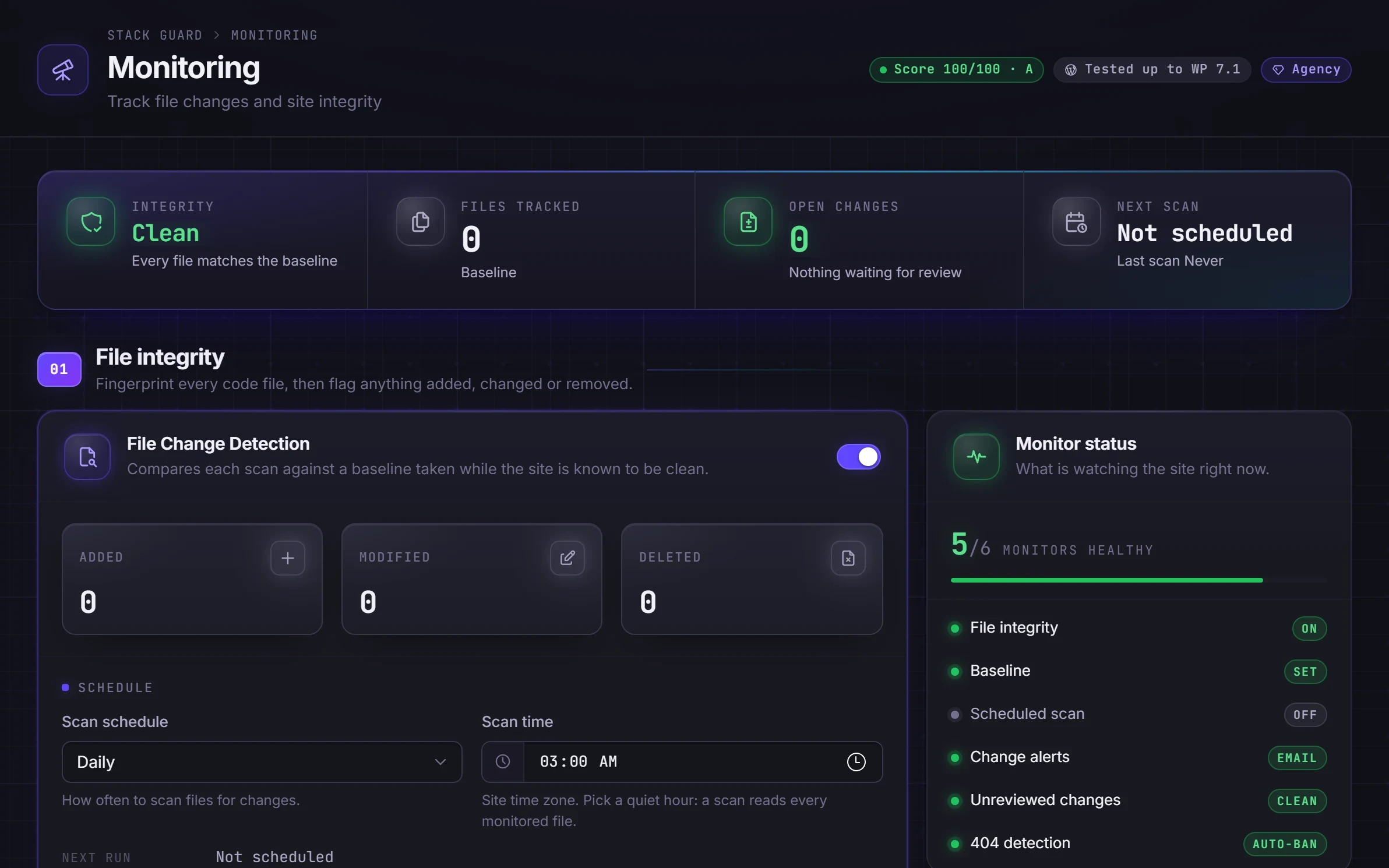
Takes a fingerprint of every code file on your site, then checks on a schedule for files that were added, changed or deleted, and tells you.
Read404 detection
Spots robots that request page after page that does not exist, the typical sign of a vulnerability scanner, and can ban them automatically.
ReadWhy file changes are the clearest sign of a hack
Hacked sites almost always gain or change files. An unexpected new PHP file in a theme folder, or an edit to a plugin you did not touch, is one of the clearest warning signs there is.
File monitoring catches those edits even when the code does not match a known malware signature, which makes it a good partner for a malware scanner. The scanner asks whether code looks bad. File monitoring asks whether anything changed that you did not change.
How WordPress file change monitoring works in Stack Guard
First make sure the site is clean, for example by running a malware scan. Then follow these steps on the Monitoring tab.
- In File integrity, switch on File Change Detection.
- Click Create Baseline. Stack Guard records a fingerprint, size and modified time for every PHP, JavaScript and .htaccess file in WordPress, your plugins and your themes.
- Scheduled scans, at the time you choose, compare the files with the baseline. Anything added, modified or deleted appears under Detected changes with its folder, size and when it changed.
- A scan also runs a minute after any WordPress, plugin or theme update.
- Scheduled scans email you when they find changes. Scans you run yourself do not.
Handle changes after updates
Updates change files, so expect a list of changes after each one. Check the list, and if the changes were expected, click Acknowledge Changes. Folders that change all the time, such as uploads and caches, are always skipped. Add your own in Exclusions, one folder per line, then rebuild the baseline.
Rebuild Baseline accepts every file as it is now, so only do it when you are sure the site is clean. Stack Guard watches the WordPress root, wp-admin, wp-includes, plugins, themes and mu-plugins, up to 10 folders deep.
404 detection, and who needs file monitoring
The same tab includes 404 detection. Scanners try hundreds of known weak files, such as old plugin paths and backup files, and each miss is logged with the address that asked. When one address hits too many missing pages in a short time, Stack Guard can ban it for the time you choose. Start with the defaults of 20 misses in 5 minutes, and leave auto-ban off at first if you want to watch before acting. A site with many broken links can catch real visitors, so fix the links if that happens.
File change monitoring suits any site that runs third-party plugins and themes, shops, membership sites and client sites an agency is responsible for. It is part of Stack Guard Pro and Agency, and it counts toward your security score.
Questions
WordPress file change monitoring: questions
Why use WordPress file change monitoring?
An attacker who gets in usually adds or edits files, such as a back door in a plugin folder. File change monitoring catches those edits even when the code does not match a known malware signature.
Will plugin updates trigger alerts?
Updates change files, so they show up as changes. Check them and click Acknowledge Changes, and skip folders that change all the time.
Which plan includes file change monitoring?
File change monitoring and 404 detection with automatic bans are part of Stack Guard Pro and Agency.
Is file change monitoring the same as a malware scanner?
No. A scanner looks for code that looks malicious. File change monitoring tells you when any code file was added, changed or removed since your baseline, which catches edits a scanner would not recognise. They work best together.
Which files does it watch?
PHP, JavaScript and .htaccess files in the WordPress root, wp-admin, wp-includes, plugins, themes and mu-plugins. Uploads, cache and backup folders are always skipped, and you can add your own exclusions.
What should I do when a file I did not change shows up?
Treat it as a warning. Look at the file, run a malware scan, and quarantine or restore it if it is not yours. Only click Acknowledge Changes once you know the change is safe.
More in Detect
See trouble the moment it starts.
Put Stack Guard's file change monitoring to work today.
Install Stack Guard Free in a minute, or go straight to Pro.