Protect / Brute Force Protection
WordPress brute force protection that stops guessing fast
A brute force attack is a robot trying password after password. WordPress brute force protection in Stack Guard counts failed sign-ins and locks the address out after a few tries, then tells you it happened.
Why it matters
Why brute force protection matters
Lock out addresses that keep failing to sign in, tell the right person, and keep the record as long as you need it.
A few tries, then a lockout
Set how many failed sign-ins are allowed and how long a lockout lasts. The defaults are sensible for most sites.
Locks the account being targeted
On Pro, lockouts also apply per username, so an attack spread across many addresses still hits a wall.
You hear about it
A lockout alert email goes out on every plan, and Pro adds a failed sign-in threshold alert and digests.
Watch it work
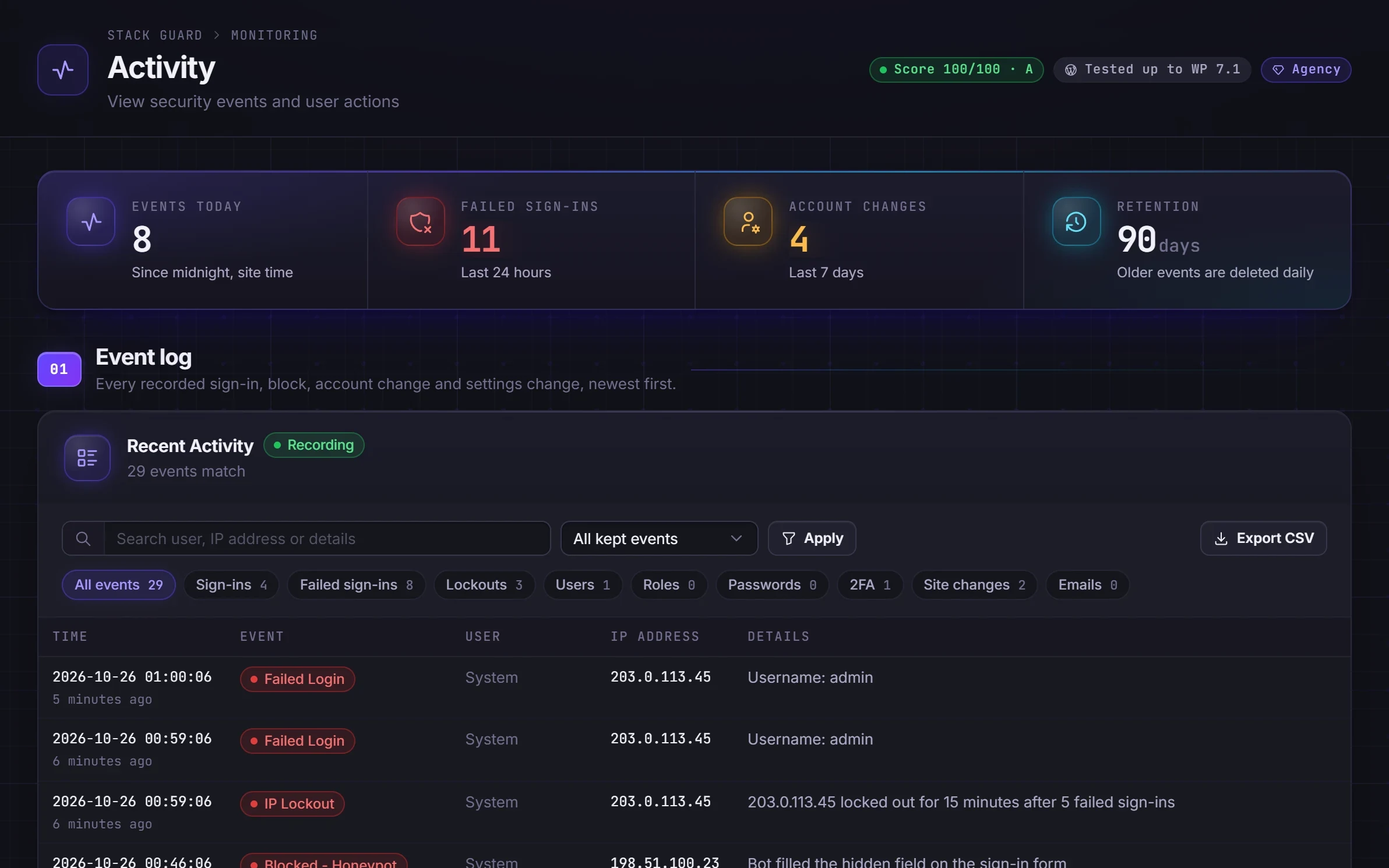
Brute Force Protection, recorded live
A real recording of Stack Guard on a demo site. Nothing staged; waiting time is cut out.
By plan
What each plan includes for brute force protection
Free
$0- Per-IP lockouts with sensible defaults
- Lockout email to one address
- Choose how long attempt records are kept
Pro adds
From $95/yr- Per-username lockouts
- Flexible windows and lockout lengths, including for administrators
- Your own lockout message
- Failed sign-in alert threshold
Docs
Set it up in minutes
The same plain-language help that ships inside the plugin.
What a WordPress brute force attack looks like
A brute force attack is a robot that tries thousands of passwords, one after another, hoping one works. It usually starts with likely usernames such as admin and goes straight to the sign-in page.
Without a limit, a robot can keep guessing forever. Every attempt costs your server work, and a weak password eventually falls. With a limit, the robot gets a handful of tries and then has to wait, which makes guessing a strong password practically impossible.
How WordPress brute force protection works in Stack Guard
Stack Guard counts wrong passwords from each internet address. After a few misses in a short time, that address is locked out for a while. The lockout is checked before WordPress checks the password, so a locked-out robot learns nothing about whether its guess was close.
When someone is near the limit, the sign-in page warns them how many tries are left. Once locked out, they see a message with the time remaining, and can sign in normally when it ends. Keep guessing after a lockout and the lockout starts again.
- Max Attempts per IP: how many wrong passwords one address gets. The default is 5. Set it to 0 to only record wrong passwords without locking anyone out.
- Check Period: how long a wrong password counts against an address. The default is 5 minutes.
- Lockout Duration: how long the lockout lasts. The default is 15 minutes.
- Per-username lockouts (Pro): counts wrong passwords for each username wherever they come from, which catches attacks spread across many addresses.
- Automatic lockout of the admin username (Pro): locks out any address that tries it. Only switch it on if no real account is called admin.
- Your own lockout message (Pro), with the time left shown wherever you type {time}.
Lockout emails, alerts and records
The lockout email is in every plan, including Free. Switch on Notifications and its IP lockouts alert and Stack Guard emails you when an address is locked out. Pro adds a failed sign-in threshold alert, so you hear about slow attacks that never trip a lockout, and daily and weekly digests.
Failed sign-ins and lockouts are also written to the activity log. You choose how long attempt records are kept, from one day to 90, and a successful sign-in clears the failed attempts for that address and username.
Protect your own team from lockouts
Strict limits catch people who mistype a password too. Add your office or home address to the allow list on the Firewall tab, and addresses on it are never counted or locked out. If your site is behind Cloudflare or another proxy, set up Real visitor IP so Stack Guard sees the visitor, not the proxy.
On Pro, magic-link unban lets a locked-out person free themselves by email, and Clear Attempts on the Dashboard lifts every lockout at once. The recovery switches in wp-config.php always get you back in: in safe mode Stack Guard still records failed sign-ins but never locks anyone out.
Brute force protection works best with a custom login URL, strong passwords and two-factor sign-in.
Questions
WordPress brute force protection: questions
What is WordPress brute force protection?
It limits how many times someone can get a password wrong before they are locked out for a while. That turns an attack that could try millions of passwords into one that gets a handful.
Can I lock myself out?
You can, the same way an attacker would. Add your own address to the allow list so it is never locked out, use magic-link unban on Pro so a locked-out person can free themselves by email, and keep the recovery switches in wp-config.php in mind: they always get you back in.
Does Stack Guard brute force protection work behind Cloudflare?
Yes. Turn on the trusted proxy setting so Stack Guard sees the real visitor address instead of Cloudflare's, otherwise every visitor would look like the same address.
Is WordPress brute force protection free in Stack Guard?
Yes. Lockouts by address and the lockout email are in every plan. Lockouts by username, the admin username trap, your own lockout message and the failed sign-in alert threshold are Pro.
What are the default lockout settings?
Five wrong passwords within five minutes lock an address out for 15 minutes. You can change all three numbers, and set the first to 0 to record wrong passwords without locking anyone out.
Does it stop attacks that use many different addresses?
Per-address limits alone do not, which is why Pro adds per-username lockouts. Stack Guard then counts wrong passwords for each username, wherever they come from.
More in Protect
Shut the doors attackers try first.
Put Stack Guard's brute force protection to work today.
Install Stack Guard Free in a minute, or go straight to Pro.