Protect / Hardening
WordPress hardening in one clear checklist
WordPress hardening means switching off the features you do not use and closing the leaks you do not need. WordPress ships with plenty that attackers love. Stack Guard switches them off with one click each, and explains what every switch does first.
Why it matters
Why hardening matters
Switch off what most sites never use and attackers love: XML-RPC, pingbacks, the code editor, user enumeration and version leaks. Rotate your security keys on a schedule.
Fewer ways in
Disable XML-RPC, pingbacks and trackbacks, and on Pro application passwords, so attackers have fewer doors to try.
Less for attackers to learn
Block user enumeration so usernames are not handed out, and hide the WordPress version from pages and asset links.
No code editor for a stolen account
Remove the theme and plugin editors, the quickest way to plant a back door after an admin account is stolen.
By plan
What each plan includes for hardening
Free
$0- Disable XML-RPC, pingbacks and trackbacks
- Disable the theme and plugin code editors
- Block user enumeration and hide the WordPress version
- Disable comments site wide
- Security key (salt) rotation by hand, with reminders
Pro adds
From $95/yr- Disable application passwords
- Automatic scheduled security key rotation
- Delete all comments in one step
Docs
Set it up in minutes
The same plain-language help that ships inside the plugin.
Remote access and comments
Switches off the old and rarely used ways into WordPress, XML-RPC, pingbacks, trackbacks and application passwords, and can turn comments off across the whole site.
ReadInformation disclosure
Stops your site from handing out usernames and its WordPress version to anyone who asks, two facts attackers collect before they strike.
ReadFile editor and admin over HTTPS
Removes the built-in code editors for themes and plugins, so a stolen admin account cannot be used to write malicious code into your site, and shows whether the admin area uses HTTPS.
ReadSecurity keys
Changes the secret keys WordPress uses to sign people in. Every existing sign-in stops working at once, including any an attacker stole. Do it by hand, get reminders, or let Stack Guard do it on a schedule.
ReadWhat WordPress hardening means
Every way into a site is something you have to defend. WordPress includes old remote controls, code editors and information leaks that most sites never need. Hardening is the job of switching those off, so there is less for an attacker to try and less for them to learn about you.
It is one of the cheapest security steps there is. It will not stop an attacker who already has a valid password, which is why it belongs next to login protection, two-factor and a password policy rather than instead of them.
The WordPress hardening switches in Stack Guard
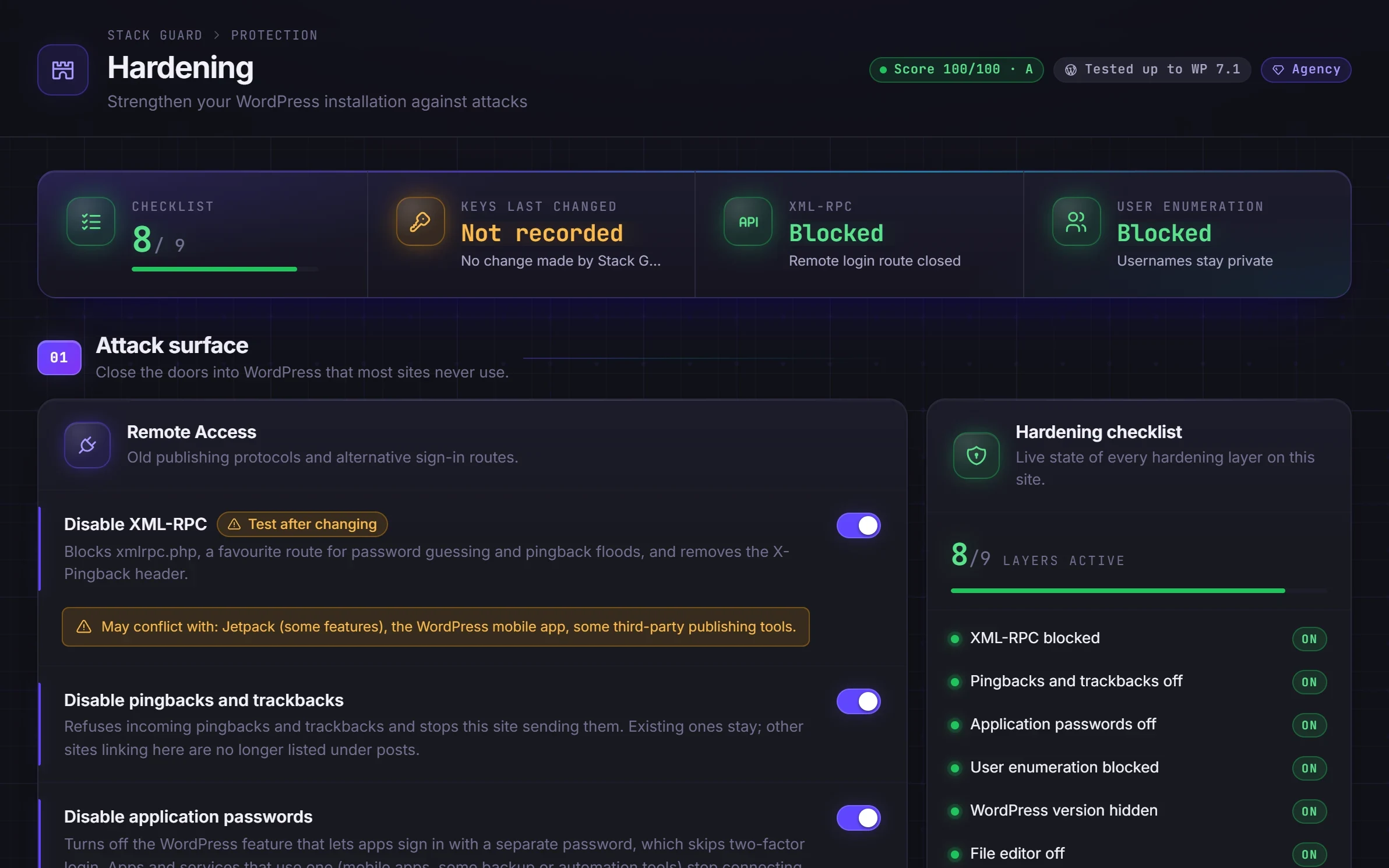
Everything lives on the Hardening tab, grouped by what it closes. Each switch has plain-language help beside it, and the ones that can affect how your site behaves carry a warning.
- Disable XML-RPC: an old remote control for WordPress where one request can try hundreds of passwords. Stack Guard refuses every XML-RPC request. Free.
- Disable pingbacks and trackbacks: stops other sites sending automatic link notices and stops yours sending them, which are mostly used for spam. Free.
- Disable comments site wide: closes comments on every post type and removes the Comments screens. Free. Delete All Comments is Pro, permanent, and best done after a backup.
- Disable application passwords: they let apps sign in without the normal sign-in page and they skip two-factor. Pro.
- Disable theme and plugin editors: removes the screens where an administrator can edit code from the browser, and blocks them if visited directly. Free.
- Block user enumeration and hide the WordPress version: visitors who are not signed in can no longer read usernames from author lookups or the REST API, and the version number disappears from page code and file links. Free.
- Admin over HTTPS: a read-only check that your admin area and sign-in page are served securely.
Rotate your WordPress security keys
Your wp-config.php file holds eight long random keys, often called salts. WordPress uses them to sign the cookies that keep people signed in. Change them and every existing sign-in stops working at once, including any an attacker stole. After a break-in, a leaked backup or a departing developer, it is the fastest way to throw everyone out.
Rotate Now and email reminders are in every plan. Pro adds automatic rotation daily, weekly or monthly at a time you choose, so pick a quiet hour. Before writing, Stack Guard saves a copy of wp-config.php (the last 3 are kept) and checks the new file is valid. If wp-config.php is not writable, ask your host or use reminders and change the keys by hand.
A safe order for WordPress hardening
Start with the low-risk switches: the code editors, user enumeration, the WordPress version and pingbacks. Then look at the ones that can break something. Keep XML-RPC on if you use the old WordPress mobile app, Jetpack or a service that publishes through it, and leave application passwords on if an app signs in with one. Stack Guard's compatibility check warns you about Jetpack.
On sites that use plain page addresses such as ?p=123, author archive pages stop working for visitors once enumeration is blocked. Signed-in users are not affected, so the block editor keeps working.
Change one thing at a time and test the site after each. Pair user enumeration blocking with Hide Login Error Details on the Login tab, so the sign-in page stops revealing usernames too.
Questions
WordPress hardening: questions
What is WordPress hardening?
Hardening means switching off features and closing information leaks that you do not need, so there is less for an attacker to use. It is one of the cheapest, most effective security steps for any WordPress site.
Will disabling XML-RPC break anything?
Only things that use it, mainly the old WordPress mobile app and some Jetpack features. Stack Guard's compatibility check warns you if Jetpack is active while XML-RPC is blocked.
What are WordPress security keys and why rotate them?
Security keys (salts) sign everyone's sign-in cookies. Changing them signs everyone out, which is the right move after a suspected breach. Stack Guard rotates them by hand with reminders on Free, or on a schedule on Pro.
Is WordPress hardening free in Stack Guard?
Most of it. XML-RPC, pingbacks, the code editors, user enumeration, the version number, comments and manual key rotation are all Free. Disabling application passwords, scheduled key rotation and Delete All Comments are Pro.
How do I disable XML-RPC in WordPress?
You can add a code filter or a server rule, but a mistake can break the site. In Stack Guard it is one switch on the Hardening tab, and every request to xmlrpc.php is refused.
Is hiding the WordPress version worth it?
It is a small step. It removes the version from page code and file links so a robot cannot tell which old weaknesses to try. It is not a fix, so keep WordPress, plugins and themes updated too.
More in Protect
Shut the doors attackers try first.
Put Stack Guard's hardening to work today.
Install Stack Guard Free in a minute, or go straight to Pro.